
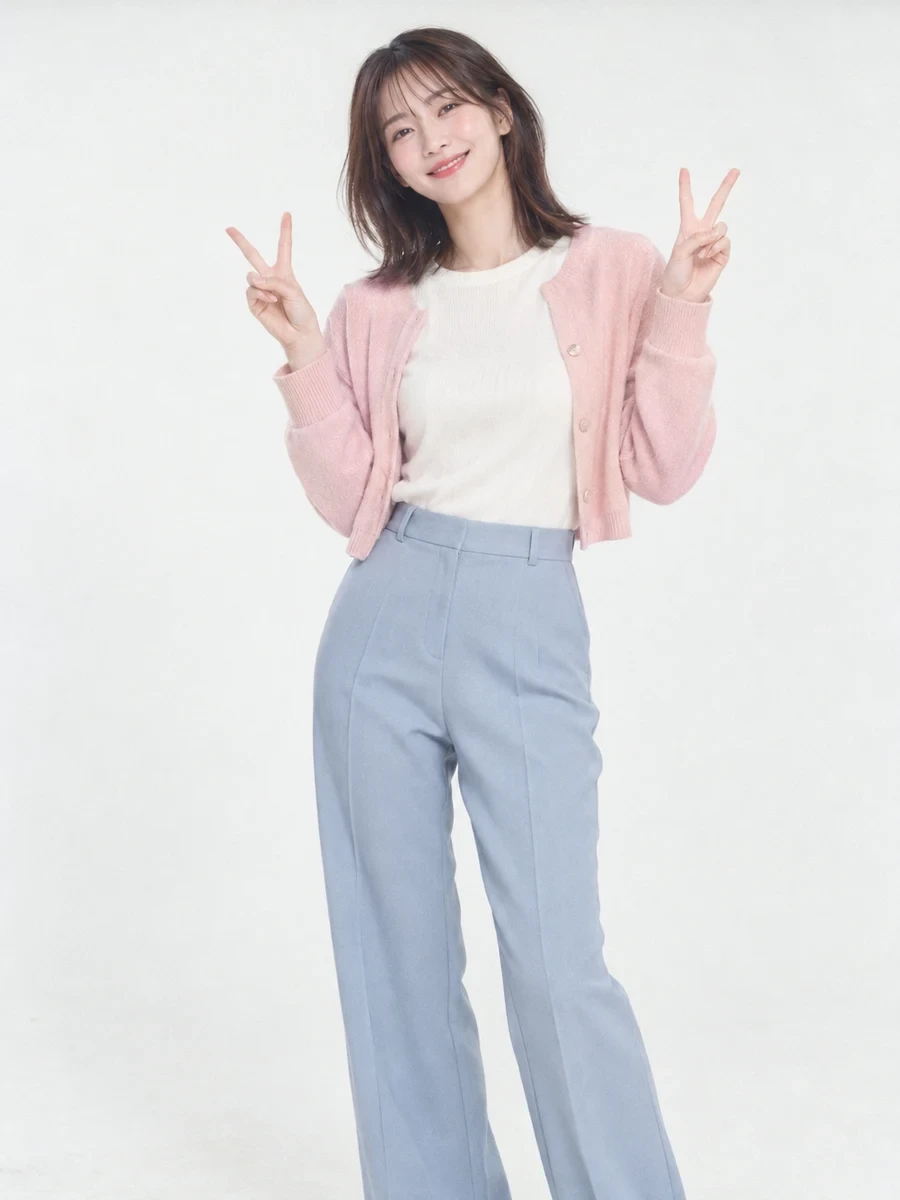
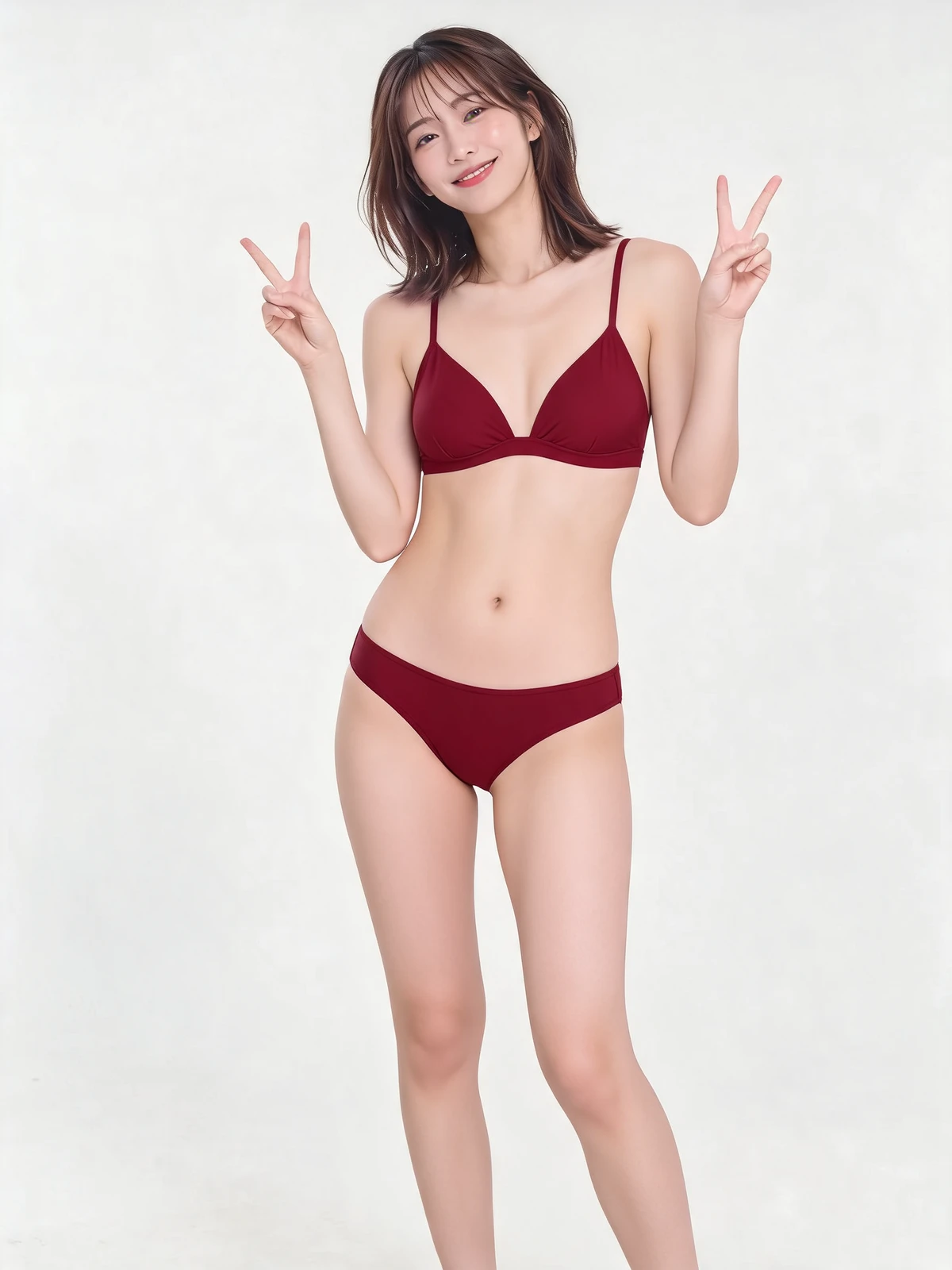
Explore a new outfit from your photo
More looks to explore
AI Clothes Remover is a photo editor for changing clothing from 1 reference photo.
Your photo stays the starting point
Use the original person, pose and scene to guide the clothing edit.
Preview before continuing
Compare the result with your source photo and choose the version you want to save.
Change an outfit in three steps
Upload or choose a photo
Start with a sharp portrait or full-length photo with even lighting and a visible outfit, or try a sample.
Describe the clothing
Write the colors, fabric and style you want in the prompt, then choose the output resolution.
Generate and download
Generate your image, review the result and download it for outfit planning or creative projects.
Explore clothing edits for different occasions

Give the same photo a new look
Use the original person, pose and background as a guide while changing the outfit. Start with a different color or clothing style to explore the idea.
Choose a person photoPlan an event or occasion outfit
Try a tailored jacket, summer dress or smart-casual outfit in the same image. Specific colors, fabrics and cuts help communicate your occasion's style.
Describe an occasion outfitTry a swimwear or holiday look
Explore opaque swimwear with normal coverage for a poolside or holiday wardrobe concept. Describe a classic cut, navy palette or matte fabric to guide the edit.
Describe a swimwear lookExplore costumes and personal styles
Use ordinary clothing, layered outfits or an opaque costume to try a different style. Keep the image as your starting point and describe the wardrobe details.
Try a different clothing styleExplore more image tools
AI Clothes Remover FAQ
What does AI Clothes Remover do?
It edits clothing using a person photo and a clothing prompt. The default look is opaque swimwear with normal coverage, while your prompt can guide other outfits. The tool's interface is available in 15 languages.
What kind of photo should I upload?
Choose a clear photo of one adult person with the clothing visible. Upload that single image or use one of the sample photos.
How do the sample photos work?
Choose from 8 sample photos to use as the source image for editing. Selecting a sample replaces your image and keeps your prompt.
How should I write the clothing prompt?
Describe colors, fabric and cut for opaque swimwear with normal coverage or everyday clothing. Without an outfit direction, the default edit uses normally covering opaque swimwear.
Does choosing a sample use credits?
Uploading or selecting a photo costs 0 credits and does not submit a generation task. Check the displayed credit estimate before clicking Generate.
Which settings can I choose?
Use the output settings currently shown in the creation area. Review those settings and the credit estimate before submitting.
Will the person and background stay the same?
The source image guides the face, person, composition and background while the clothing changes. Exact preservation is not guaranteed, so review the result.
Where can I find my results?
View your results in this tool's works area or My Creations. You can open and download completed images there.
What clothing ideas can I explore?
Try everyday outfits, occasion looks, normally covering swimwear or opaque costumes. Use your prompt to describe the clothing style and palette.
These examples use Seedream 5.0 Lite. ByteDance Seed describes its image editing behavior:
the model maintains consistency in non-edited areas more stably
By AI Image GeneratorUpdated:
Try a new look from your photo
Upload a person image or choose an adult sample, then describe your next outfit.
Start editing