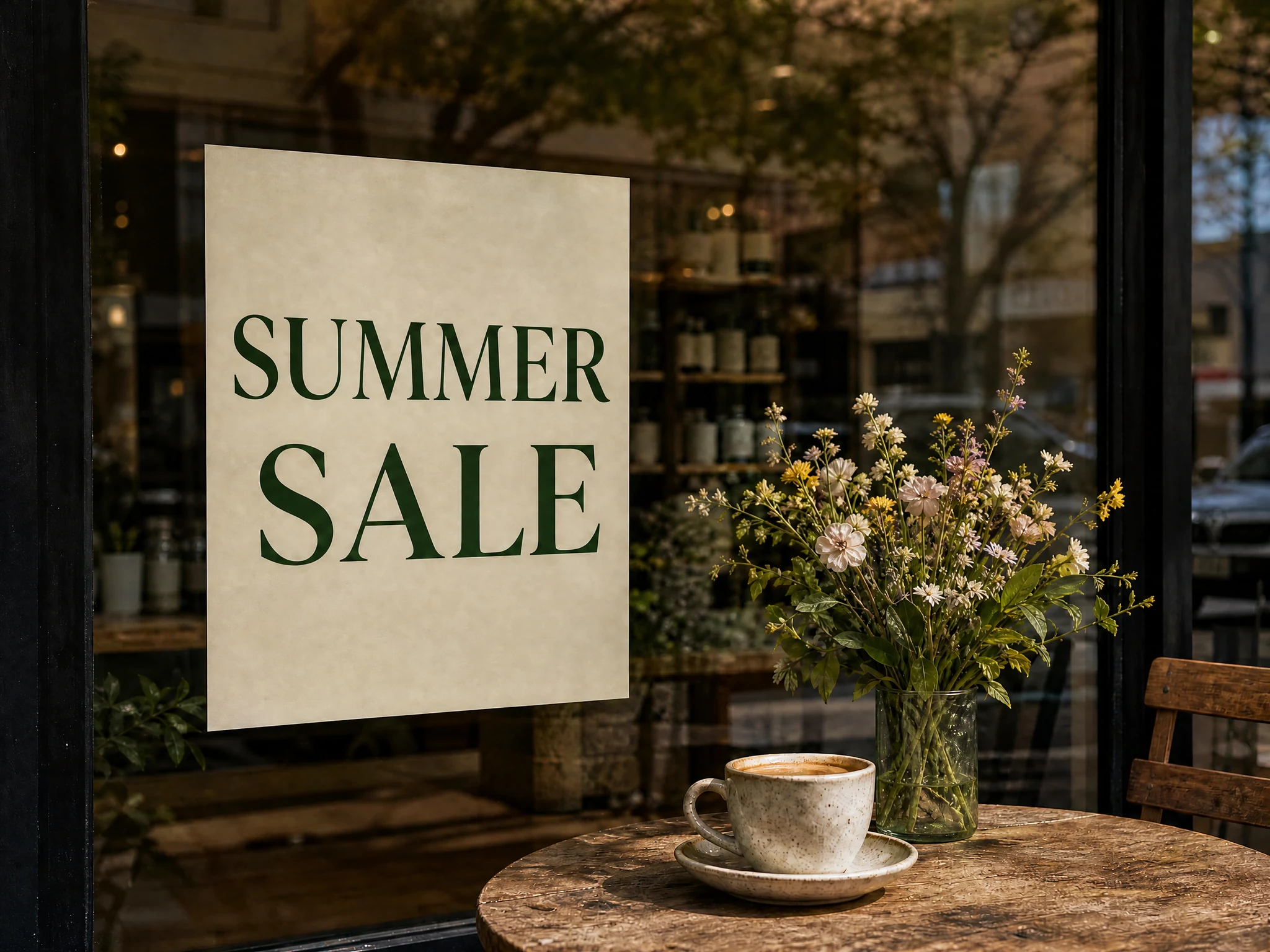
Best uses for image text editing with AI Image Generator
Keep a design you like and update the words. Replace old dates, correct prices, refresh campaign copy, or prepare a version for another market.
Start editing image textHow to edit image text with AI Image Generator
 1
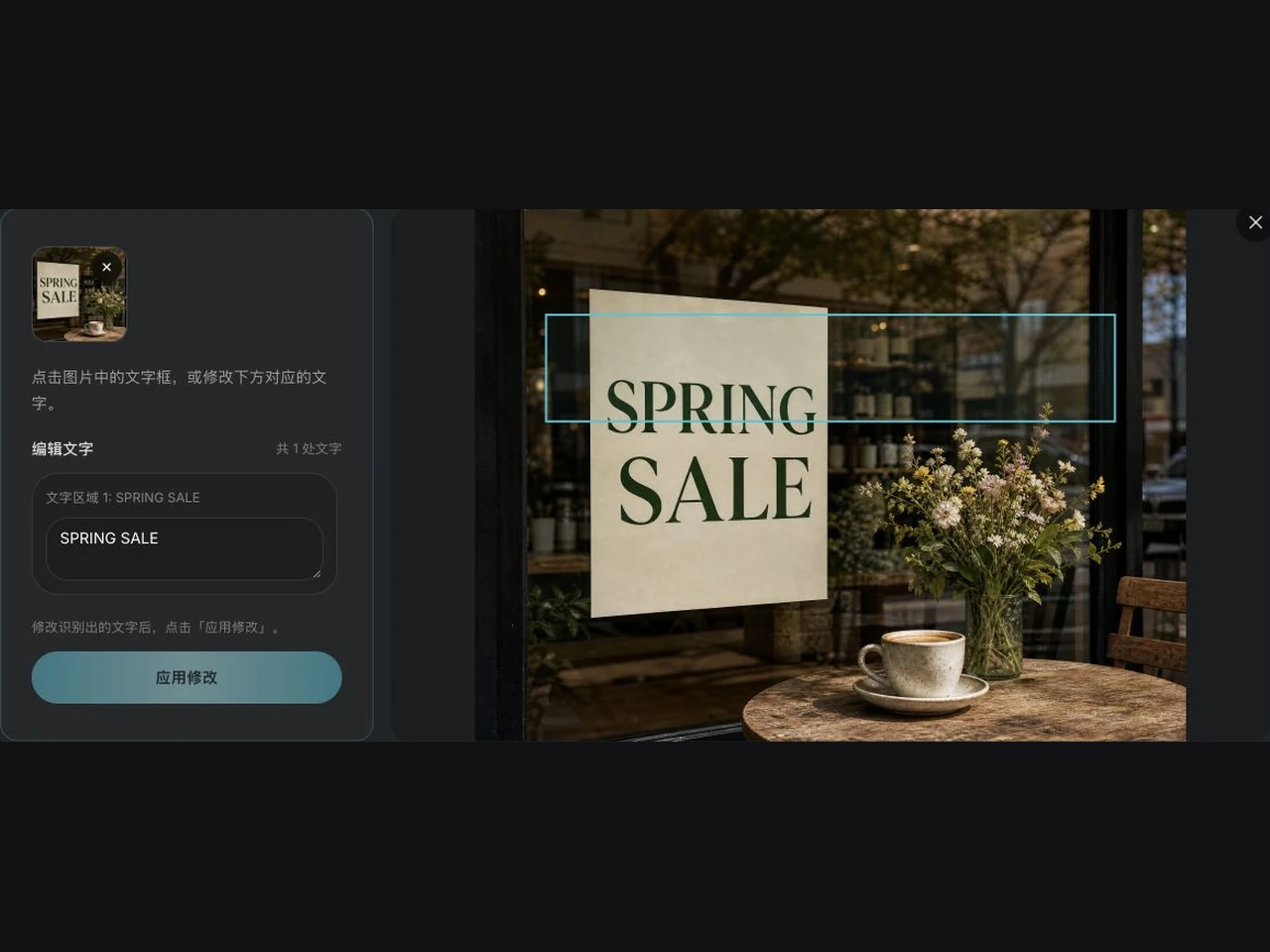
1AI Image Generator · Upload an image with text
Start with a poster, product image, ad, screenshot, or social image. JPG, PNG, and WebP files up to 10 MB are supported. Text recognition starts after you sign in and upload.
 2
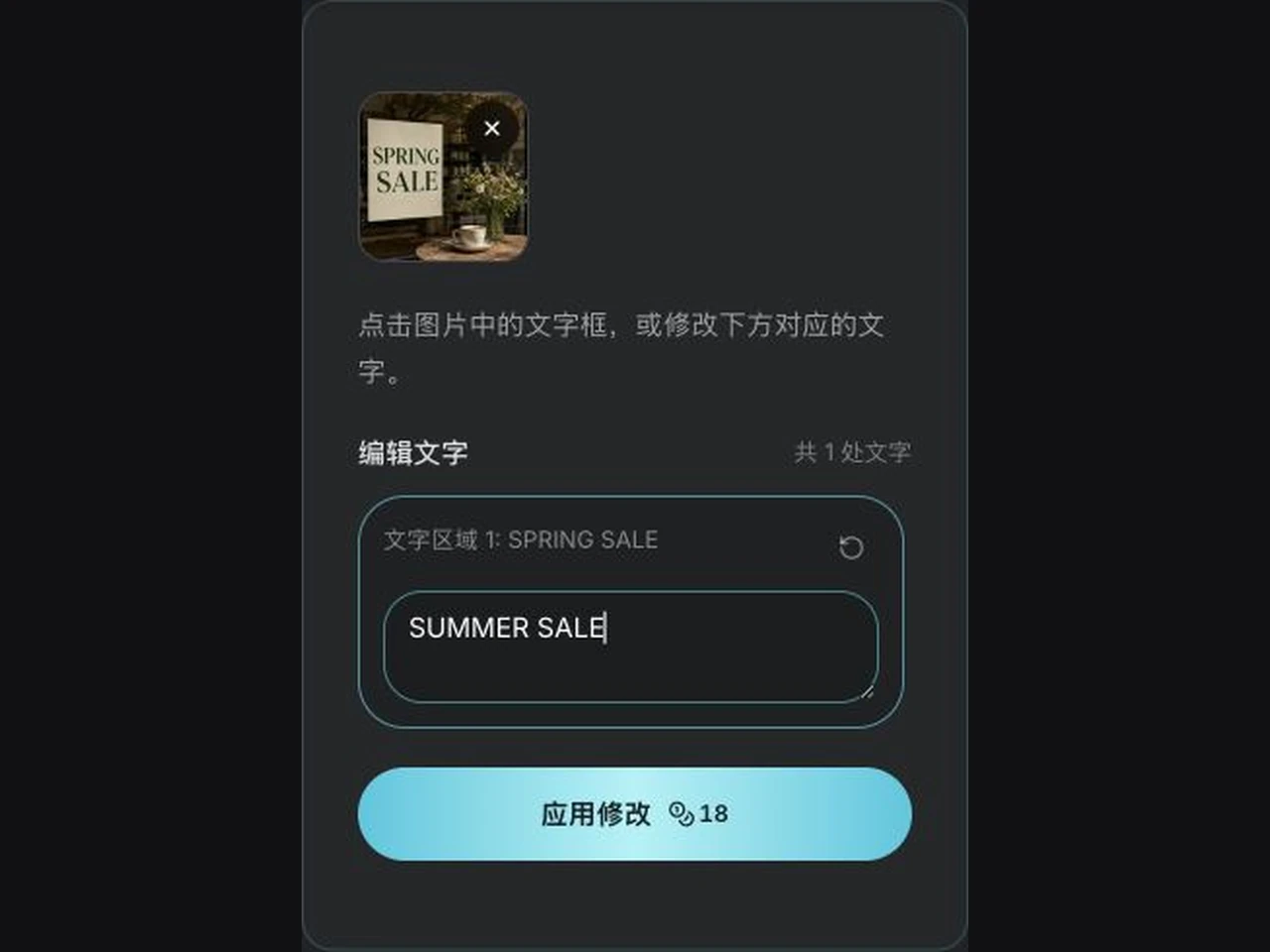
2AI Image Generator · Select and rewrite the text
Check the recognized text. Select a text box in the image or edit its matching row, then enter the replacement, correction, or translation.
- 3
AI Image Generator · Compare and download the update
Select “Apply changes” to generate an image and follow its progress in “My works.” Compare the result with the original, check the text and layout, then download.
Update image text easily with AI Image Generator
AI Image Generator · Replace image text without the source file
Work from an exported image even when you cannot find the original PSD, Figma, Canva, or presentation file. Recognize and change the text in the visual you already have.
Replace image textAI Image Generator · Keep up with changing campaign copy
Update offers, promotional dates, product names, prices, and calls to action. Make a small text change while continuing to use your existing campaign visual.
Update campaign copyAI Image Generator · Keep the original visual direction
Editing instructions aim to preserve the background, composition, and font style so the new text fits the design. Compare the wording, layout, and background before choosing your final version.
Edit an existing designEdit image text without redesigning in AI Image Generator
Start with an existing image to correct an old date, wrong price, or typo, or prepare a new language version. Upload, recognize, edit, generate, and download in one workspace.
AI Image Generator · Automatic text recognition
Identify text and its position after uploading. Select a text box to locate its matching editing row.
AI Image Generator · Replace, correct, and translate
Edit recognized text line by line and enter the exact wording for a campaign or market.
AI Image Generator · Generation history in one place
Follow progress and find completed results in “My works,” then return to the editor to keep working on the original.
AI Image Generator · Compare and download
Drag the comparison slider to review your changes, then save the image after checking the text, layout, and details.
- AI Image Generator · Text
- Automatic recognition and positioning
- AI Image Generator · Copy
- Replace, correct, and refresh
- AI Image Generator · Versions
- Image text for different uses
Image text editing FAQs for AI Image Generator
AI Image Generator: What does editing image text mean?
It means changing text embedded in an image. This tool recognizes the text and its position, then uses the original image and your new wording to generate an updated version.
AI Image Generator: Can I replace text in posters, product images, or ads?
You can upload images with clear text and try changing headlines, dates, venues, product names, prices, or offers. Compare the generated result before using it.
AI Image Generator: Can I change the text to another language?
Enter your translated wording in the matching text row. Prepare an accurate translation first, then check that the length, line breaks, and layout fit the image after generation.
AI Image Generator: Do I need a PSD, Figma, or original design file?
No. Upload a JPG, PNG, or WebP image up to 10 MB. Clear images with larger text are easier to recognize and review.
AI Image Generator: What if recognition fails or the text is incorrect?
Use “Recognize again” if recognition fails. You can review and correct each recognized line. Try a clearer image if the text is small, blurry, or obscured.
AI Image Generator: Will the new text keep the original font and style?
The editing instructions aim to preserve the font style, layout, and other image content. Generative AI can change details, so check the new wording, layout, and background before downloading.
AI Image Generator: Do recognition and generation use credits?
Both text recognition and image generation use credits. Recognition starts automatically after you sign in and upload. Check the estimated credits and account balance before applying changes.
AI Image Generator: Where can I follow progress and download the image?
After selecting “Apply changes,” follow the task in “My works.” Compare and download the completed image, or return to “Edit image text” to continue editing the original.
Give your image a new message with AI Image Generator
Upload a poster, product image, ad, screenshot, or social visual. Use AI to replace, correct, or translate text while keeping the design’s visual direction.
Start editing image text