
Best uses for image upscaling with AI Image Generator
Keep the image you like, with more room for detail. From creative artwork to product visuals, prepare a version that better fits how you want to display and share it.
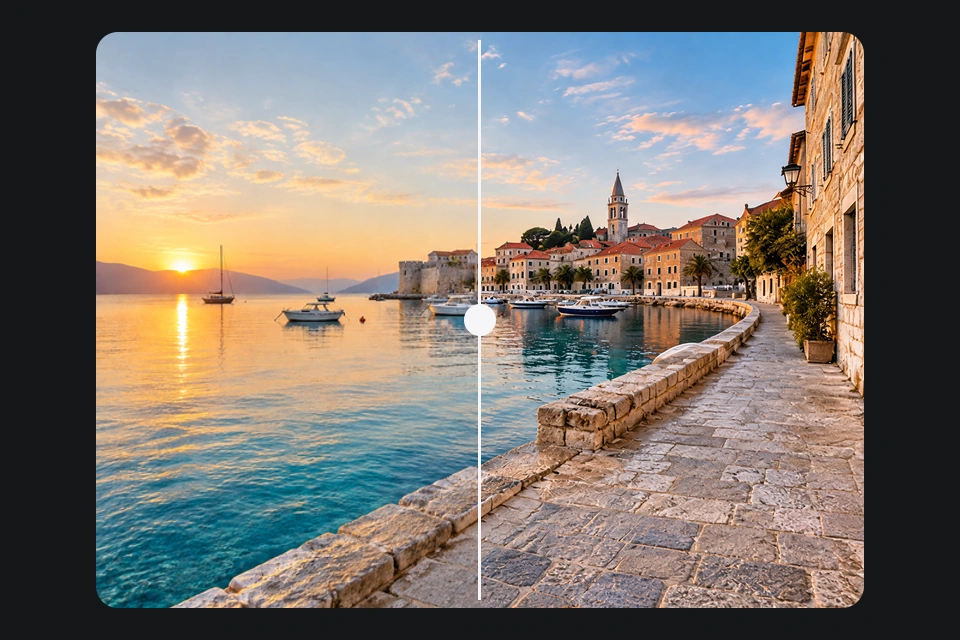
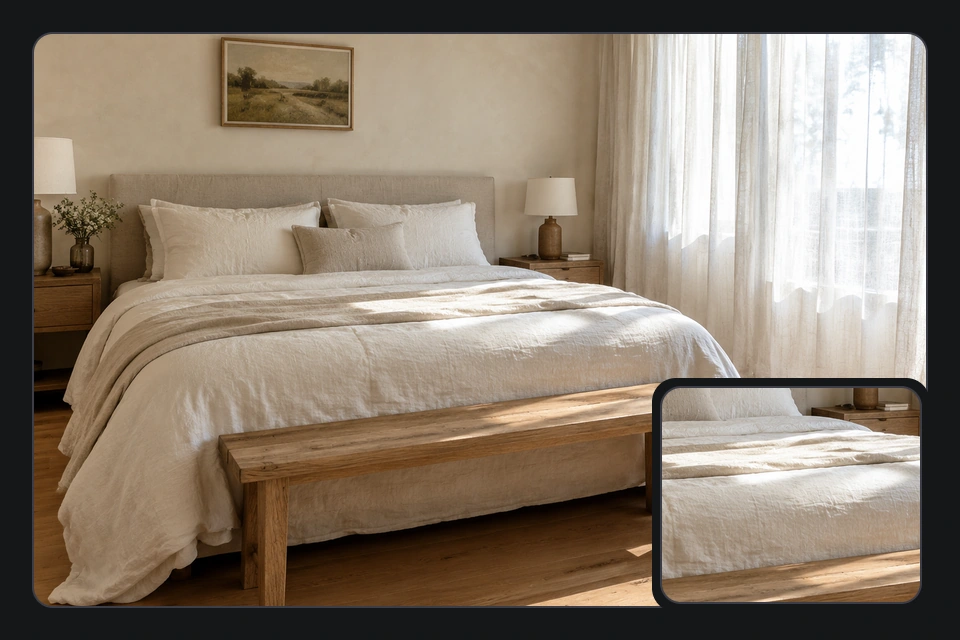
Start AI image upscalingMatching detail crops from a 640 × 480 original and its actual 2304 × 1728 AI upscale result. Compare hair, textures and text edges in the same area.
How to upscale images in three steps with AI Image Generator
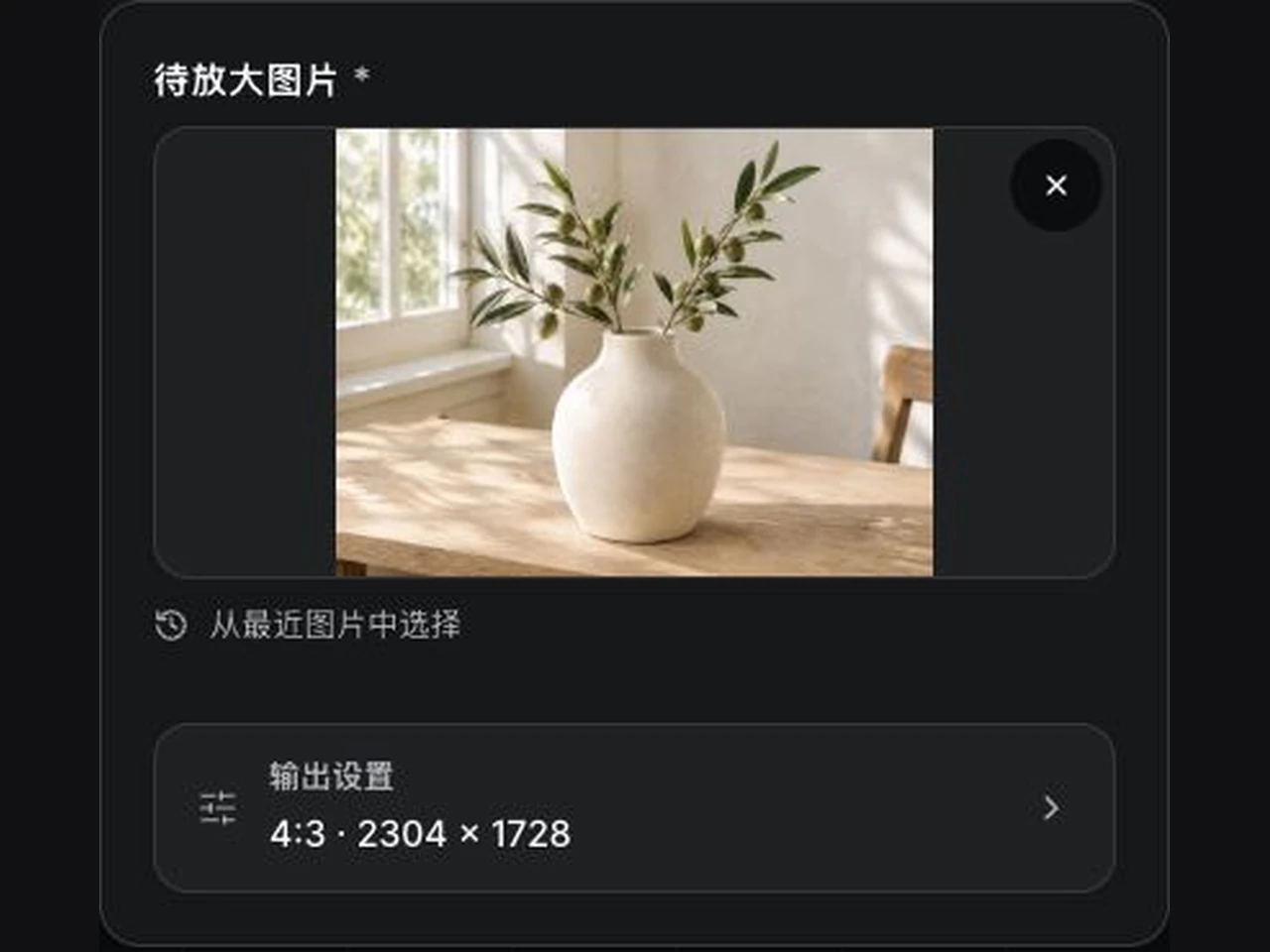 1
1AI Image Generator · Upload the image you want to upscale
Start with a photo, AI artwork, product image or design asset. JPG, PNG and WebP files up to 10 MB are supported.
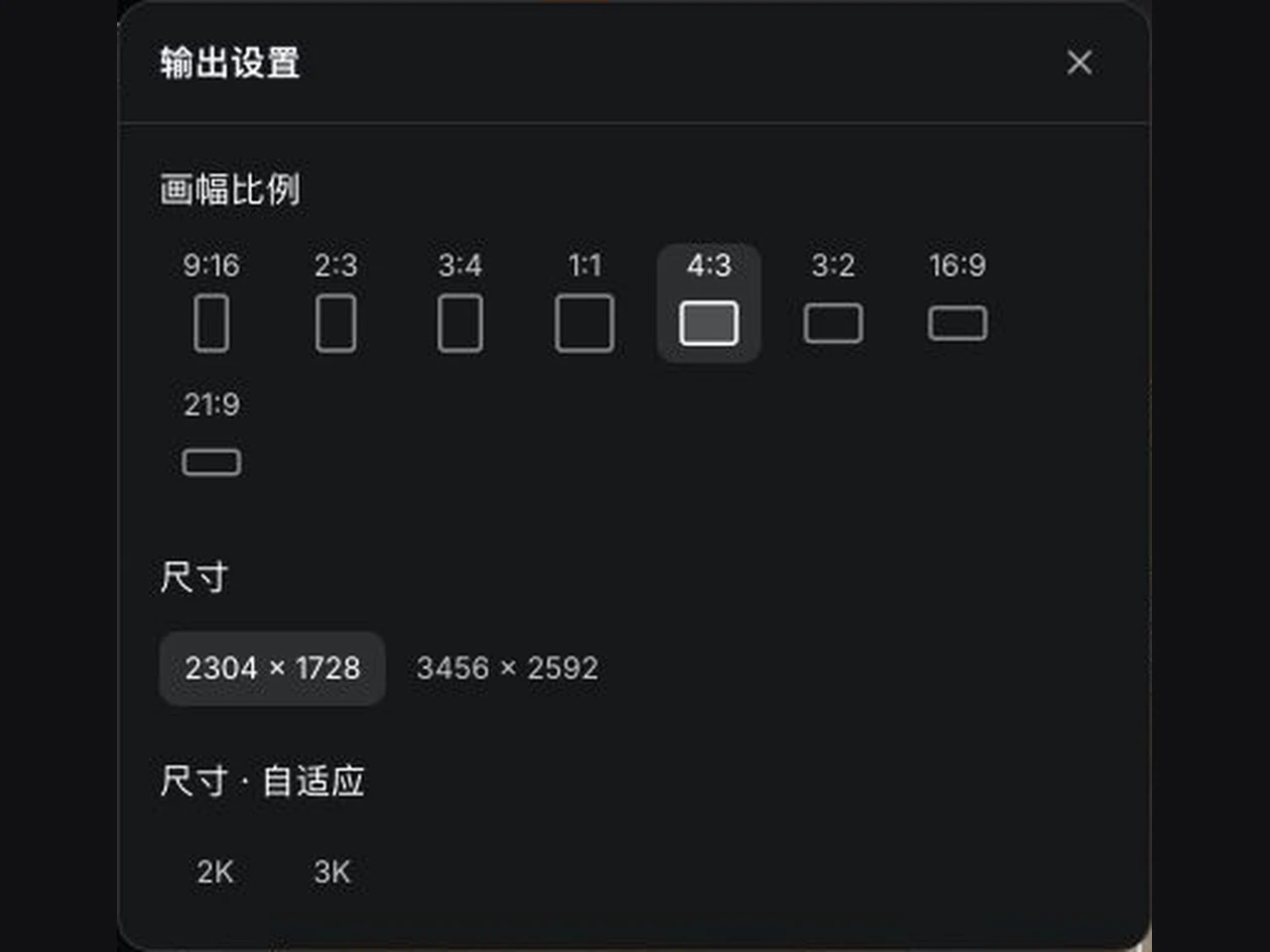 2
2AI Image Generator · Choose the output resolution
Select an available size in output settings and review the estimated credit cost before starting. Options depend on the current model.
- 3
AI Image Generator · Compare and download the result
Follow generation in My works. When it finishes, drag the comparison slider to review the original and result, then download.
Get more from your images with AI Image Generator
AI Image Generator · Start with your existing creative work
Lower-resolution photos, AI art, product visuals and thumbnails can all be a starting point. Focus on clarity and detail without redesigning the entire image.
Start AI image upscalingAI Image Generator · Prepare output for its final destination
Social posts, product pages, websites and slides have different size requirements. Choose an available resolution for your destination, then check the result before publishing.
Start AI image upscalingAI Image Generator · Keep the original visual direction in mind
The instruction aims to preserve your subject, composition and style, with output proportions based on the source by default. AI can change local details, so use the comparison to review the result.
Start AI image upscalingCreate clearer image assets with AI Image Generator
Upload, configure, generate, compare and download in one workspace. Choose output for your intended use and check key details against the original.
AI Image Generator · Resolution from output settings
Available sizes depend on the current model and settings. A scale multiplier and a resolution label are different measurements.
AI Image Generator · AI detail for edges and textures
Improve the presentation of detail and some noise or compression artifacts. AI may infer missing information, which needs review.
AI Image Generator · Source-based proportions
The default size selection uses a nearby available size based on your source, with an instruction to preserve its subject and layout.
AI Image Generator · Generation history and downloads
My works keeps generation progress and completed results together for review, comparison and downloading.
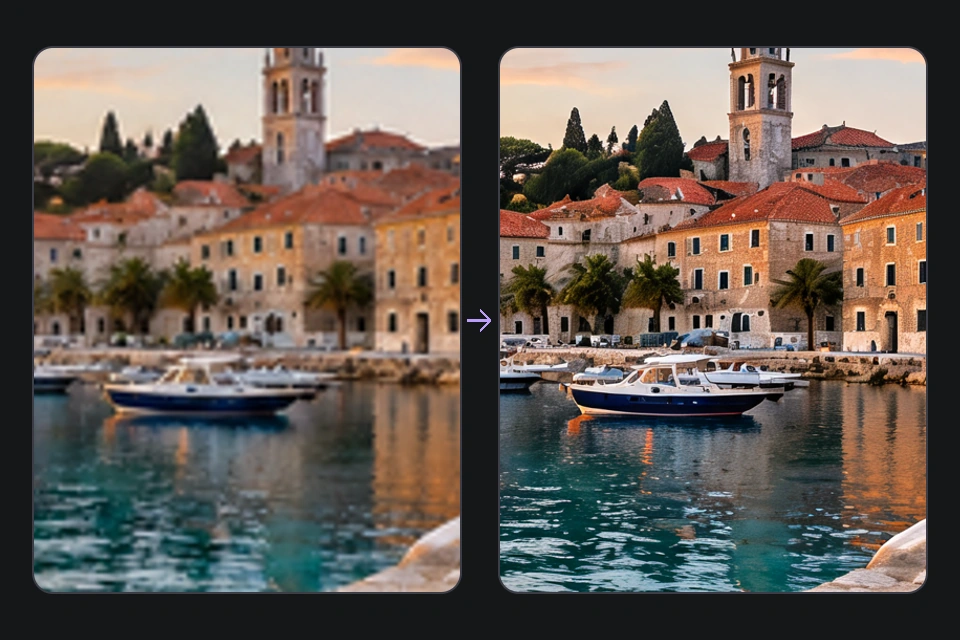 High resolution
- Based on actual output settings
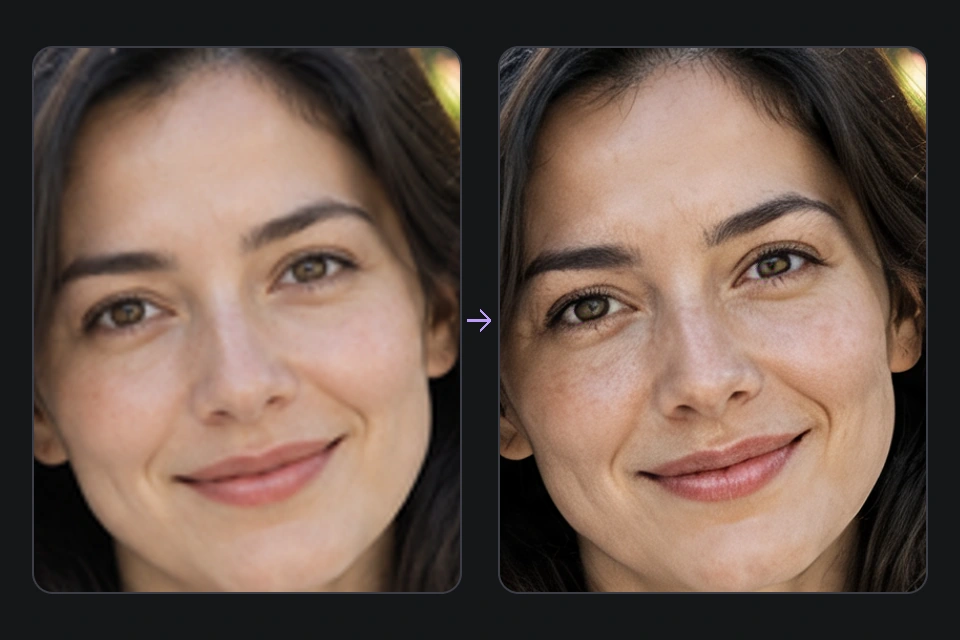 AI detail
- Review added details before use
 Source proportions
- Source-based sizing by default
Image upscaling FAQs for AI Image Generator
AI Image Generator: What is AI image upscaling?
AI image upscaling takes an existing image and generates a higher-resolution version while attempting to add edge, texture and fine detail. Use it to continue with an existing visual idea. For a new image, start with the AI image generator.
AI Image Generator: Which file formats can I upload?
JPG, PNG and WebP files up to 10 MB are supported. Use the best-quality source you have and avoid repeatedly compressed screenshots to make the result easier to compare and review.
AI Image Generator: What output resolution is available?
Check the output settings for sizes supported by the current model. The final image dimensions are what matters. This tool does not guarantee that every image can be generated at 4K or 8K.
AI Image Generator: How is 4× upscaling different from 4K output?
A scale multiplier describes a size change relative to the source. 4K describes an output resolution category. They are different measurements; the source dimensions and aspect ratio affect the result. This tool uses the size options in output settings.
AI Image Generator: Does generating an image cost anything?
Generation uses credits. Review the estimated cost shown on the generation button and confirm that you have enough credits before starting. The page shows the applicable cost and available output options.
AI Image Generator: Will it change the original subject or composition?
The instruction aims to preserve the subject, composition, background and style. Output proportions use the source by default. Generative AI can change local details, so identical content is not guaranteed. Check faces, text, logos and product features.
AI Image Generator: Can it fix a heavily blurred or pixelated image?
AI can attempt to improve some blur, noise and compression artifacts, but it cannot guarantee recovery of real information already lost from the source. A poor source may lead to inferred details. Review important photos and product information manually.
AI Image Generator: Can I upscale product images?
You can upload product images to try improving their display size, edges and texture. Before publishing, verify colors, materials, packaging text, model numbers and logos so the result accurately represents the product.
AI Image Generator: Can I upscale AI-generated artwork?
You can use existing AI images as input and select an available output resolution. Upscaling does not fix every source issue. If an image has structural errors, incorrect text or unwanted objects, consider using the image editor first.
AI Image Generator: Where can I follow generation and download my work?
After starting generation, open My works to follow the task. When it finishes, inspect the result, compare it with the original using the slider and save it with the download button. Return to AI Image Upscaler to upload and configure another image.
Explore more tools in AI Image Generator
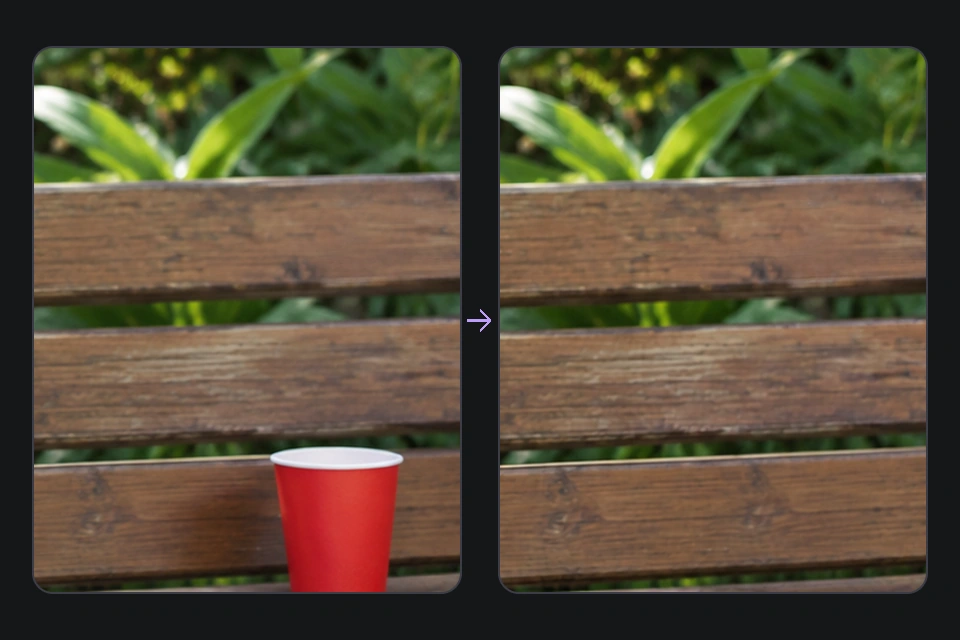
AI Image Generator · AI Object Remover
Brush over unwanted objects to clean up the scene while keeping the subject.
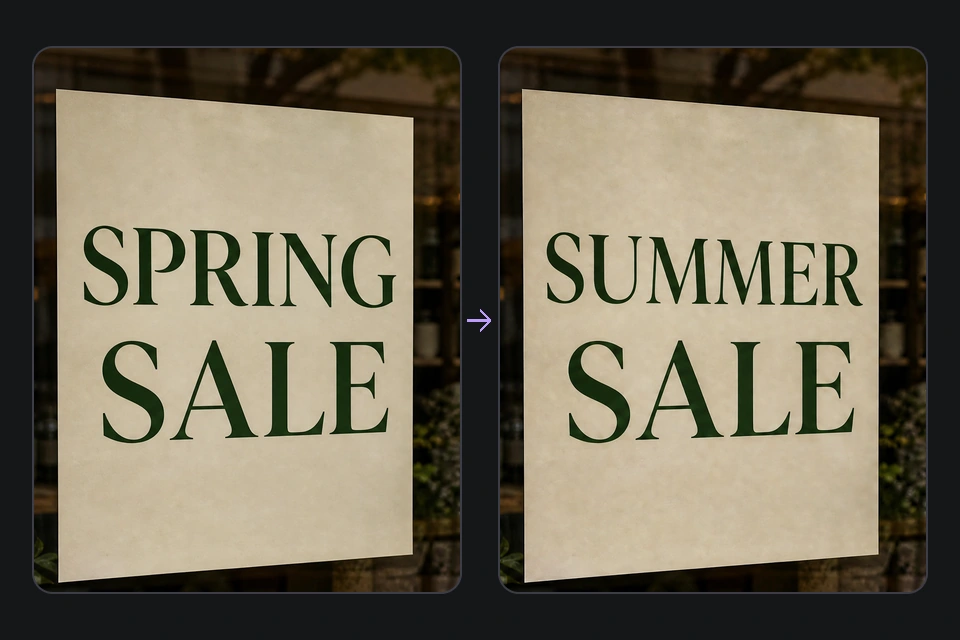
AI Image Generator · Edit text in images
Edit the lettering in a photo before upscaling the final version.
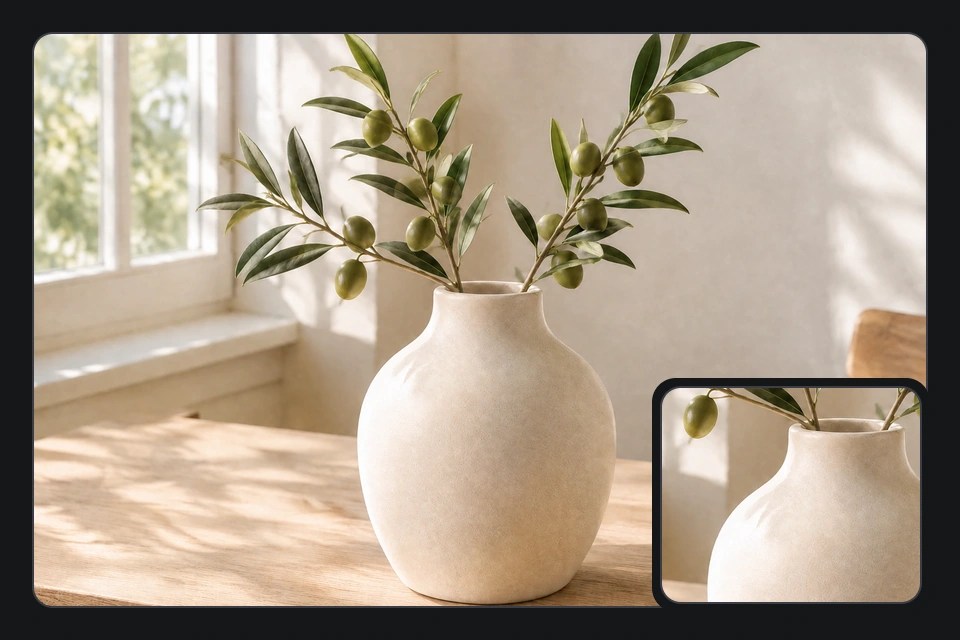
AI Image Generator · AI Watermark Remover
Work on watermarks and distracting elements in existing images.
AI Image Generator
Start from a text description and create a new image.
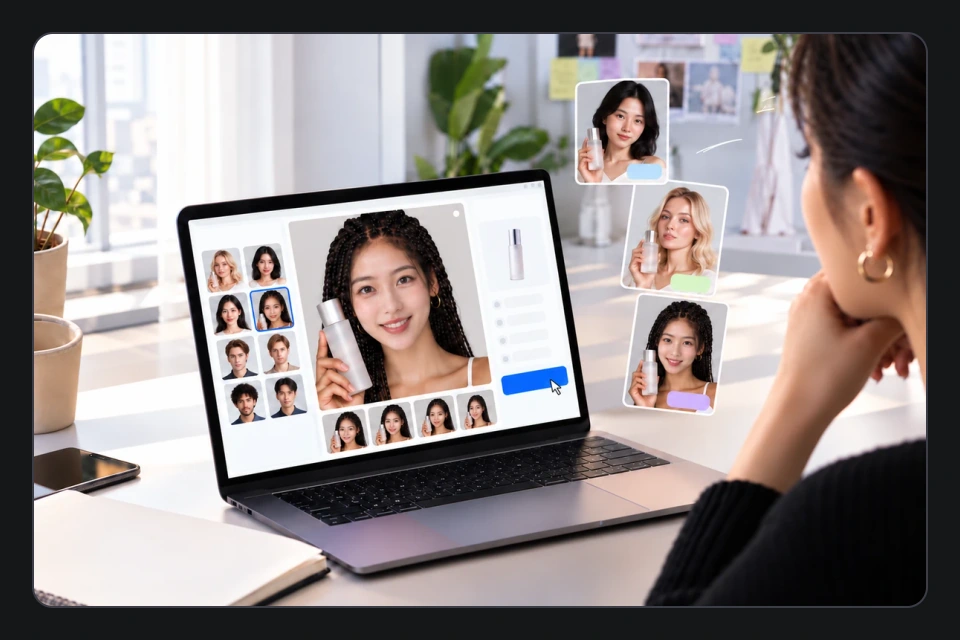
AI Image Generator · AI Face Swap
Explore image creation with a reference face.
Make your images clearer with AI Image Generator
Start with an image you already have, choose an output resolution and let AI add detail. Generation uses credits; compare and review before downloading.
Start AI image upscaling